
A lost laptop, failed hard drive, or ransomware message can stop a small business much faster than most owners expect. This small business backup strategy guide is built for local businesses that need to protect customer information, financial records, and everyday work without turning IT into a second full-time job.
For a Jacksonville business, the risk is not limited to a computer wearing out. Storms, power issues, accidental deletion, stolen devices, and cyberattacks can all put important files out of reach. A good backup plan gives you a practical way to recover and keep serving your customers.
What a Small Business Backup Strategy Should Protect
Start by identifying the information your business could not comfortably lose. That usually includes customer contacts, invoices, bookkeeping files, estimates, email, payroll records, passwords, employee documents, photos, and files stored on office computers or shared drives.
Do not assume files are protected simply because they are in a cloud app. Many services keep deleted files or previous versions only for a limited period. Synchronization is also not the same as backup. If someone deletes a folder and that deletion syncs across devices, the files may disappear everywhere.
Think beyond the main office computer, too. Employees may save documents on desktops, laptops, external drives, phones, or home computers. If those devices are part of your daily workflow, they belong in the plan.
Use the 3-2-1 Rule Without Making It Complicated
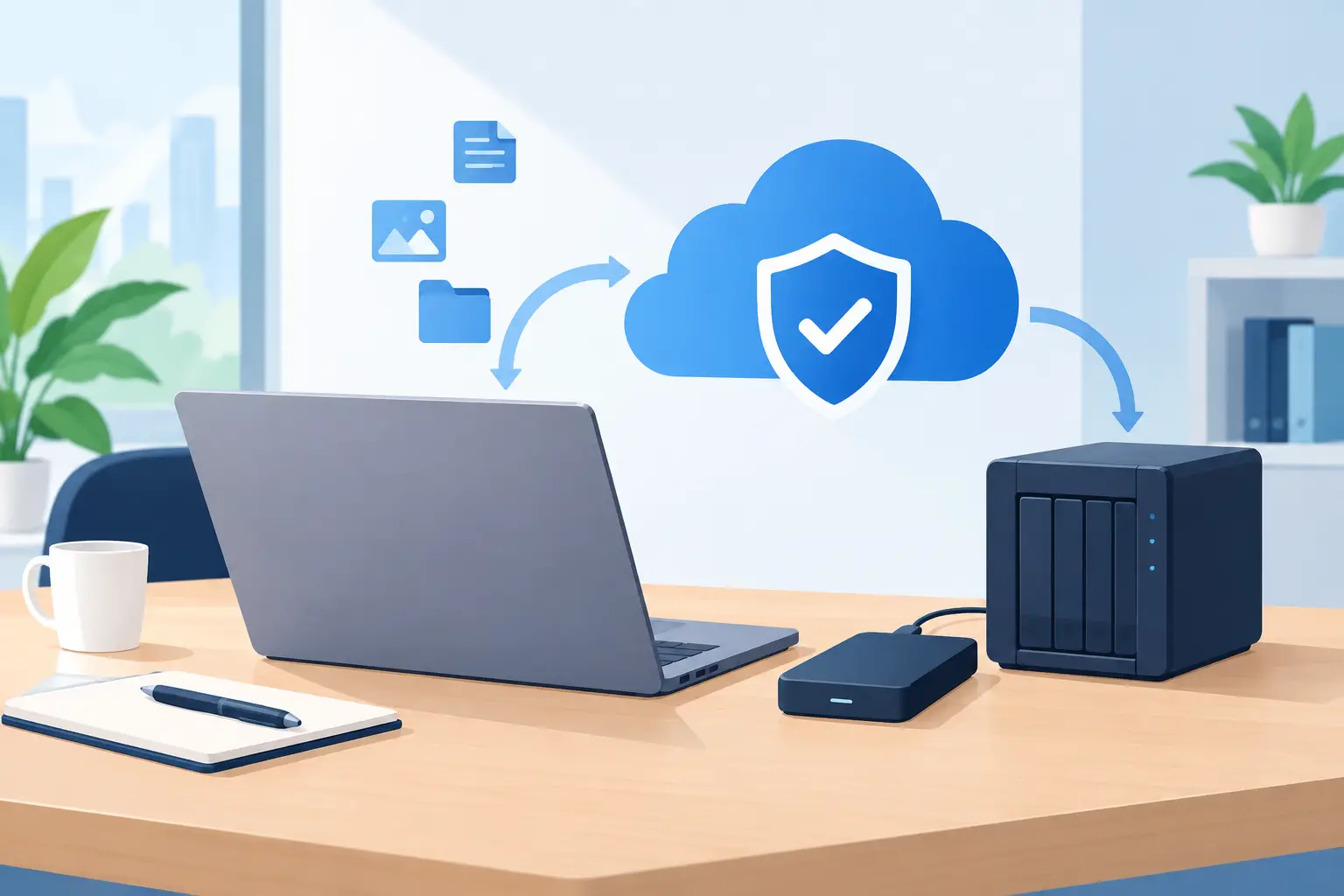
The most reliable starting point is the 3-2-1 backup rule: keep three copies of important data, on two different types of storage, with one copy stored offsite. It is a simple principle because it protects you from more than one kind of failure.
Your original files are the first copy. A backup on a local external drive, network storage device, or server is the second. A secure cloud backup, kept away from your physical location, is the third.
Local backups are usually fast to restore. That matters when a staff member needs a file right away or a computer needs to be rebuilt. Offsite backups protect against events that affect the whole location, such as theft, fire, water damage, or a major storm. Using both gives you speed and protection.
There is a trade-off. Cloud backup may take longer to restore a large amount of data, especially with slower internet service. A local drive alone is quick, but it will not help if it is sitting next to the computer when the office is damaged. Most small businesses are best served by a combination of both.
Choose What Needs the Fastest Recovery
Not every file has the same value or needs to be restored at the same speed. A business that cannot process payments without one application has a different priority than a business that mainly needs archived design files.
Ask two direct questions: How much recent work can we afford to lose? How long can we operate without these files or systems?
If losing a full day of invoices or customer updates would cause serious problems, your backup should run at least daily. If your team changes critical files throughout the day, more frequent backups may be needed. Some systems can back up changes every few minutes.
Also decide what must be restored first. For many local businesses, the order looks something like this: customer and financial records, line-of-business software and its data, email access, shared files, then individual device settings. Writing this down prevents confusion when everyone is trying to get back to work.
Protect Backups From Ransomware
Ransomware is designed to encrypt files and make them unusable until a payment is demanded. It can affect shared folders and attached backup drives, especially if those drives remain connected all the time.
A backup is only useful if the ransomware cannot reach it. Look for a backup method that includes version history or immutable copies. Version history lets you restore a clean version of a file from before it was encrypted or changed. Immutable backups are protected from being altered or deleted for a set period.
It also helps to limit access. Not every employee needs permission to delete backups, change retention settings, or access every shared folder. Use separate backup credentials, strong unique passwords, and multi-factor authentication wherever it is available.
Do not overlook basic computer maintenance. Keep operating systems, browsers, security software, and business applications updated. Train employees to pause before opening unexpected attachments or entering passwords after clicking a suspicious email link. Backups are a safety net, not a substitute for safe habits.
Build a Backup Routine Your Team Will Actually Follow
The best plan is one that runs automatically and is checked regularly. Manual backups tend to be forgotten when business gets busy, which is usually when you need them most.
Set automatic backups for the files and systems that matter, then assign one person to review the backup reports. That person does not need to be a technical expert. They simply need to know whether the backup completed and who to contact when it did not.
A useful routine includes these four actions:
- Review backup alerts at least once a week.
- Confirm that critical devices and folders are included.
- Check available storage space and subscription status monthly.
- Test a file restore every three to six months.
That last step is where many businesses fall short. A backup can show as successful while still missing a key folder, using the wrong login, or failing to restore correctly. Test by recovering a recent file to a separate location and opening it. For critical software, test whether the application data can be restored and used.
Document the Plan Before There Is an Emergency
Your backup plan should not live only in the owner’s memory or with one employee. Create a short document that explains where data is stored, what is backed up, how often backups run, who has administrative access, and how to start a restore.
Keep the document somewhere accessible if the main office computer is unavailable. Include vendor account information, recovery codes, contact details for your IT support provider, and a clear list of the systems your business depends on.
Be careful with passwords. Do not place passwords in a plain document or send them through email. A reputable password manager can help store access securely while allowing the right people to reach it during an emergency.
If you handle sensitive customer data, consider the extra requirements that may apply to your industry. Medical, legal, financial, and professional service businesses may have privacy obligations that affect how data is stored, encrypted, and accessed. The least expensive backup option is not always the right option when confidential information is involved.
Common Backup Mistakes That Create Expensive Problems
One common mistake is backing up only one computer. If files are shared across several devices, stored in email, or managed through a specialized business application, each location must be considered.
Another is leaving an external drive permanently connected to the computer. It may protect against a failed hard drive, but it can still be affected by ransomware, power damage, theft, or fire. Rotate drives or pair the local backup with an offsite copy.
Businesses also sometimes assume a cloud storage folder is fully protected. Cloud storage is helpful, but its recovery options and retention limits vary. Review what happens after accidental deletion, account compromise, or a ransomware-synced file change.
Finally, do not wait for a failure to learn whether recovery will work. The goal is not just to have copies of your files. The goal is to restore what you need quickly enough to keep your business moving.
When It Makes Sense to Get Backup Help
A simple setup may be manageable for a one-person business with a single computer. As soon as you add employees, shared files, accounting software, multiple locations, or sensitive records, backup planning becomes more involved.
A local IT professional can review where your data lives, identify gaps, set up automatic protection, and test recovery before a crisis forces the issue. At Abundant Computer Service, LLC, we help Jacksonville businesses make practical technology decisions without the big-box runaround.
A backup plan is peace of mind you can measure. Take an hour this week to identify your critical files, confirm where they are copied, and restore one test file. That small check can save days of disruption later.