
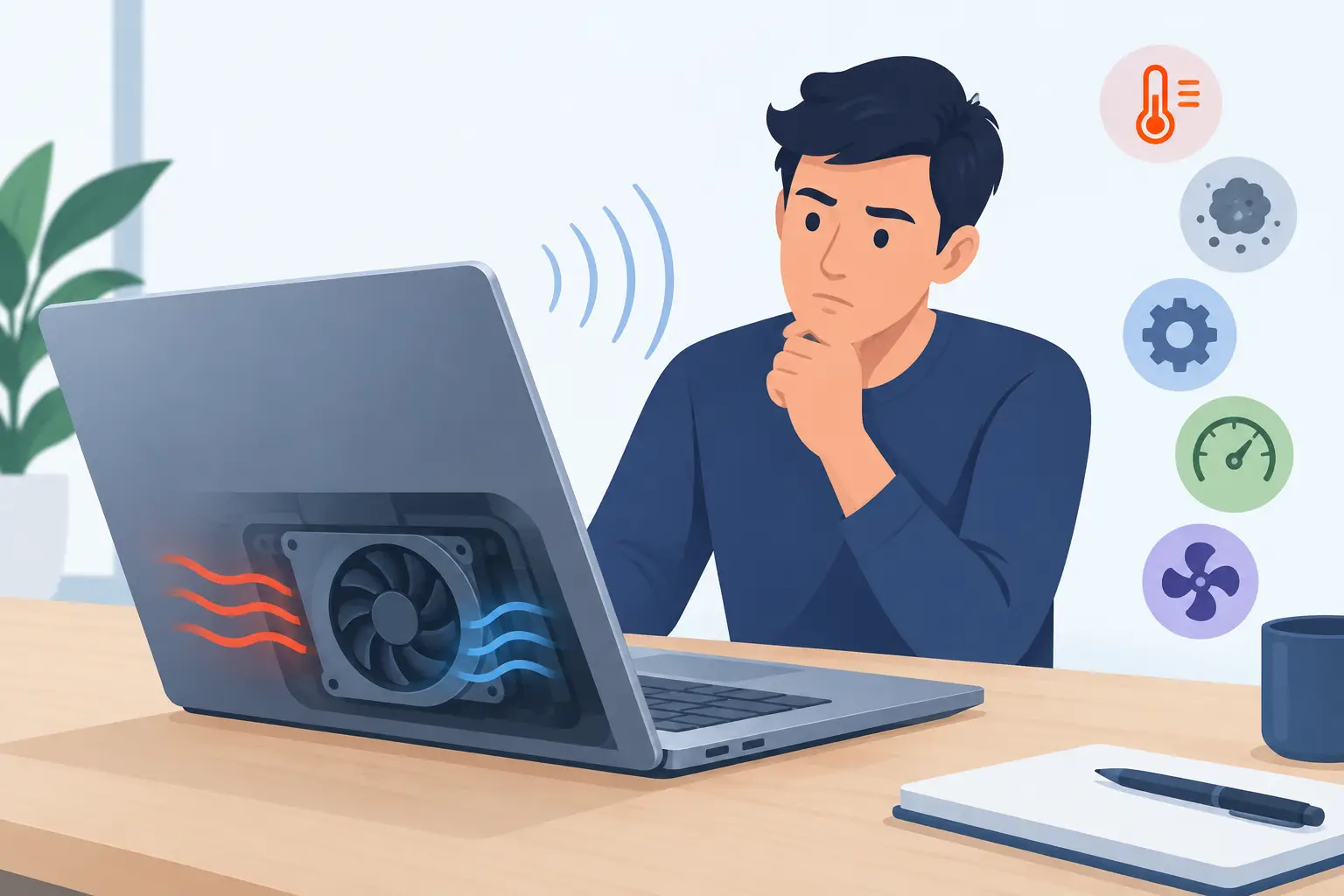
A laptop that suddenly sounds like it is preparing for takeoff can be distracting, but it is usually trying to protect itself. Laptop fan noise causes range from ordinary heat buildup during a demanding task to blocked airflow, aging hardware, or a software problem that is keeping the processor busy when it should be resting.
The key is to notice when the noise happens, how long it lasts, and whether it comes with other symptoms such as lagging, overheating, random shutdowns, or a clicking sound. A louder fan is not always an emergency, but ignoring a persistent change in sound can turn a straightforward repair into a more expensive problem.
Common laptop fan noise causes
Your laptop fan moves heat away from the processor, graphics chip, battery area, and other internal components. When those parts get warmer, the fan speeds up. Some noise is normal. The concern starts when the fan is constantly loud during simple tasks, changes pitch unexpectedly, or makes a sound that clearly does not resemble moving air.
Dust and restricted airflow
Dust is one of the most common reasons a laptop fan runs loudly. Over time, dust collects around the intake vents, fan blades, and heatsink. The fan must work harder to pull air through that buildup, while the laptop traps more heat inside.
This is especially common with laptops used on beds, couches, rugs, or laps, where fabric can block vents. Jacksonville’s warm, humid climate does not cause dust inside a computer by itself, but a laptop already working against high room temperatures has less cooling room to spare.
You can check the outside vents for visible lint or dust. Avoid pushing debris deeper into the system with a household vacuum or trying to force objects through the vent openings. A proper internal cleaning may be needed if the noise has been increasing over months or the laptop feels hot underneath.
Demanding programs and too many background tasks
Video calls, photo editing, gaming, large spreadsheets, streaming, and browser tabs can all make a fan louder. That does not necessarily mean the laptop is failing. It may simply be doing more work than usual.
The difference is whether the fan settles down after the task ends. If it stays loud while you are only checking email or staring at the desktop, a background process may be using too much of the processor. Software updates, cloud backups, antivirus scans, browser extensions, and unwanted programs can all create that load.
On a Windows laptop, Task Manager can show which programs are using significant CPU or memory. Closing a program you recognize may help. Be careful about ending unfamiliar system processes, however. Removing the wrong process can create new problems without fixing the original one.
Overheating from dried thermal paste or cooling issues
Between the processor and its cooling system is a heat-transfer material called thermal paste. It helps move heat from the chip into the heatsink, where the fan can push it away. As a laptop ages, that material can dry out and become less effective.
A worn heatsink connection, a damaged heat pipe, or an internal cooling problem can produce the same result: the processor warms up quickly, and the fan runs at high speed to compensate. You may also notice that the laptop slows down after it has been on for a while. That slowdown is often a protective response called thermal throttling.
This is not a do-it-yourself repair for most owners. Many modern laptops are tightly assembled, and opening one incorrectly can damage cables, hinges, or the battery. A technician can inspect the cooling system, clean it, and determine whether the fan or heatsink needs replacement.
A failing fan motor or damaged fan blades
Airflow noise is one thing. Rattling, grinding, buzzing, clicking, or a repeated scraping sound is different. Those noises can point to a fan with worn bearings, a loose blade, or an object touching the fan.
A failing fan may still spin, but it may not spin fast enough to keep the computer cool. If the noise changes when you tilt or move the laptop, or if it appears alongside heat warnings and shutdowns, stop using the computer for demanding work until it can be checked. Continuing to run an overheating laptop can put stress on the motherboard, battery, storage drive, and processor.
Malware, unwanted software, or a software glitch
Not every cooling problem starts with hardware. Malware and unwanted browser tools can run hidden tasks that use processor power continuously. A corrupted update, a driver problem, or an application stuck in a loop can also keep the fan active.
If your laptop fan became loud right after installing a new program or update, the timing matters. A software review can identify whether the computer is genuinely under load or whether the fan control settings are behaving incorrectly. This is often less costly than replacing parts, but it needs a proper diagnosis first.
When loud fan noise is normal
A loud fan is expected for short periods when a laptop is charging, installing updates, rendering video, playing a game, or running several demanding programs at once. Thin laptops can be louder than larger models because they have less room for airflow and smaller cooling components.
The surface beneath the laptop also matters. Place it on a hard, flat desk or table so the vents can breathe. A cooling pad may improve airflow in some situations, but it will not solve internal dust, a failing fan, or a program that is overworking the system.
It also depends on the laptop’s age and design. A compact five-year-old laptop may run warmer and louder than a newer business model, even when both are working correctly. The goal is not complete silence. The goal is a fan that responds appropriately to heat and quiets down when the workload drops.
Signs you should schedule a repair
A little fan noise can wait. These signs should not:
- The fan runs loudly almost all the time, even when no programs are open.
- The laptop becomes too hot to comfortably touch near the keyboard or bottom panel.
- You hear clicking, grinding, rattling, or scraping instead of steady airflow.
- The computer freezes, slows down sharply, displays a temperature warning, or shuts off unexpectedly.
- The fan has stopped making noise entirely, but the laptop is overheating.
Back up important files as soon as possible if the laptop is overheating or shutting down. Heat-related failures can become unpredictable, and protecting family photos, tax records, business documents, and other irreplaceable data should come first.
What a professional diagnosis can uncover
A good repair visit should do more than remove dust and send you on your way. The technician should check temperatures, fan behavior, airflow, software activity, physical damage, and the condition of the cooling components. That helps separate a simple cleaning from a failing fan, malware issue, or deeper hardware fault.
For Jacksonville residents and local businesses, Abundant Computer Service can inspect the cause of persistent laptop fan noise and explain the practical repair options in plain language. In many cases, a timely cleaning, software fix, or fan replacement can restore normal performance before overheating affects other parts of the computer.
Do not wait for a loud fan to become a silent one. If the noise is new, constant, or paired with heat and slow performance, getting it checked now can help keep your laptop dependable when you need it most.